Now is a better time than any to upgrade your digital world with a new computer and all the necessary apps that will simplify your life. If you decide to use a Mac, you may end up confused after your first attempt at navigating macOS—Apple's latest operating system.
Instead of reverting back to your old computer setup, read through the following Mac hacks and discover more productive ways to get things done in no time. The list below covers the basics for Mac newbies who are using Sierra, the most current macOS.
1. Set Up a Smart Folder
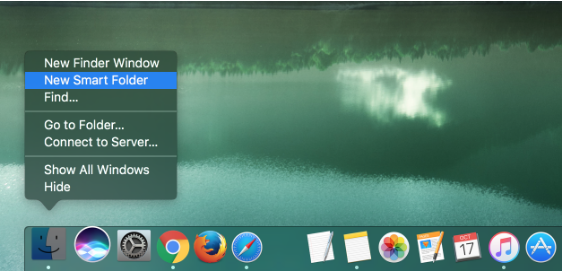
The Finder is the default file manager, and it helps you find and organize everyone on and connected to your Mac, including applications, files disks, network connections, and devices. You can personalize your Finder experience with Smart Folders, which automatically sort your files into folders based on specific characteristics that you decide. To get started, open Finder and then click File > New Smart Folder.
2. Get to Know the Dock
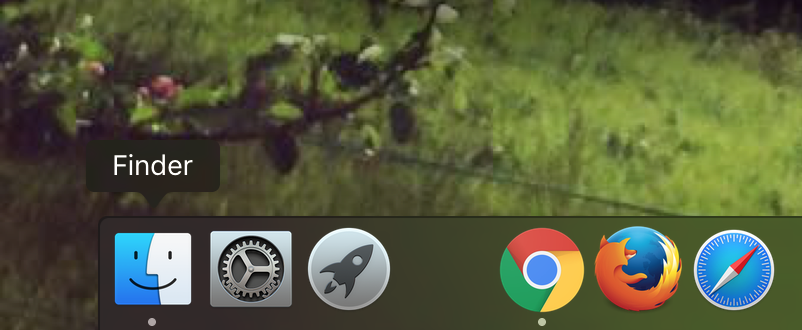
The Dock appears at the bottom of your Mac's screen by default. You can reposition, change, magnify, and customize the icons in the Dock by clicking the Apple icon on the upper left corner of your screen and choosing System Preferences > Dock. You can even choose to add spaces between apps to make the Dock appear more organized.
3. Say Hello to Siri
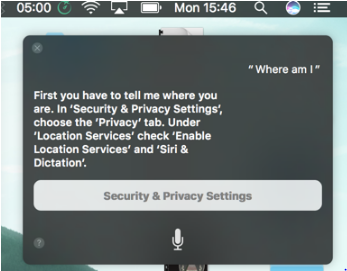
With the introduction of the Sierra operating system, Siri is now available on Macs. Like Siri for iOS, Siri for Mac can do a lot of things for you—from reporting sports scores to tracking today's to-do lists.
Unlike its iOS counterpart, you can't say "Hey Siri" to activate Siri for Mac (unless you create Dictation commands). Instead, Mac users can activate Siri by doing one of the following:
- Press and hold the Command and Space buttons for two seconds.
- Click the Siri icon on the Dock, located between the Finder and Launchpad logos.
- Click the Siri icon on the Menu Bar, located between the Spotlight search and Notification Center icons.
4. Learn about Spotlight
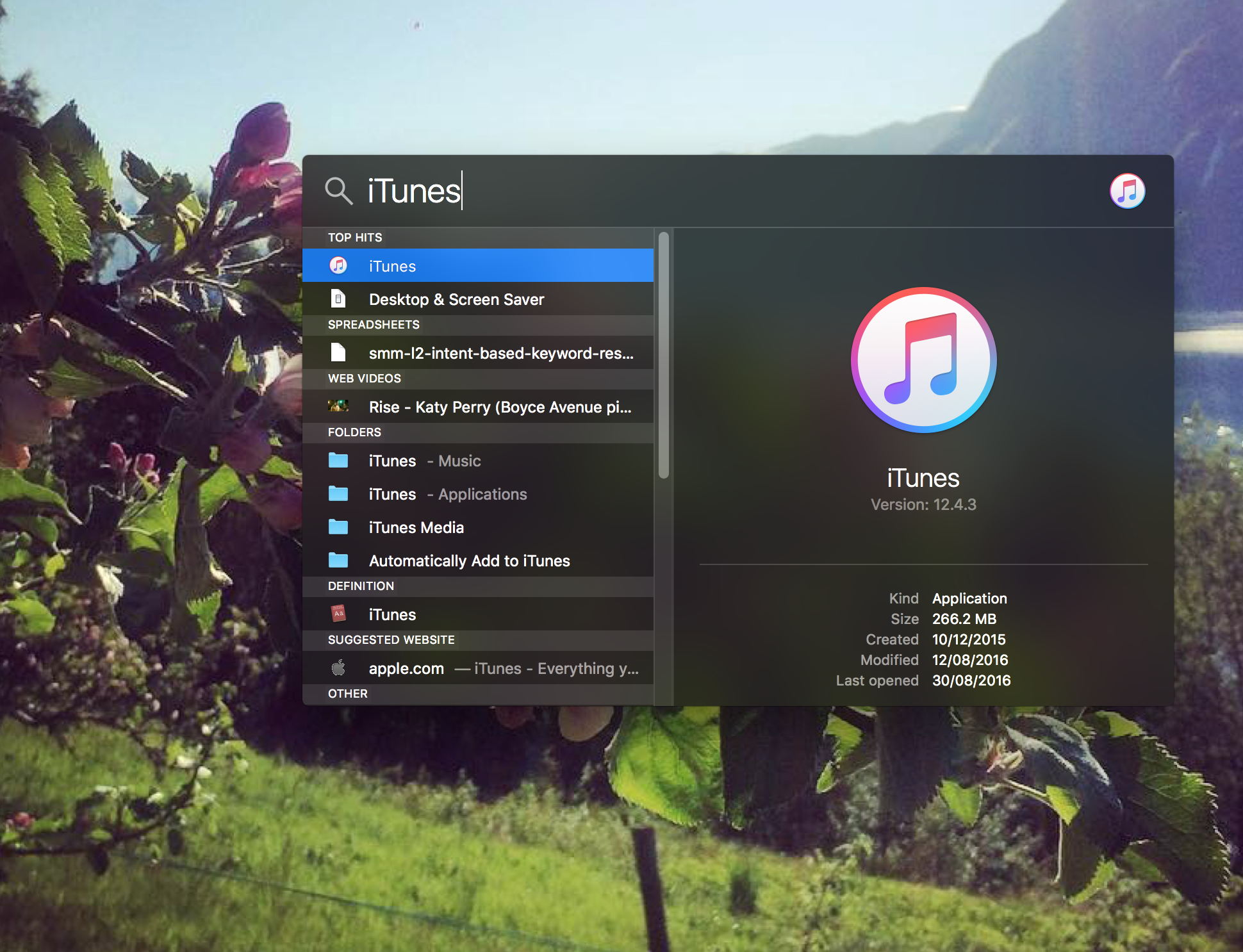
If you prefer a minimalist Mac look and would like to get rid of the Dock, you can use Spotlight to launch programs and apps instead. Simply press Command and the space bar at the same time to open Spotlight search. You can type the name of an app, file, or program into Spotlight. You can even use specific terms like, "Images I uploaded last week," and click on the icon for a preview of the search results.
Comments
Post a Comment